
Image to layers online
Upload a flat JPG, PNG, or WebP and turn it into editable transparent image layers you can preview, inspect, and download.
Decomposition workspace
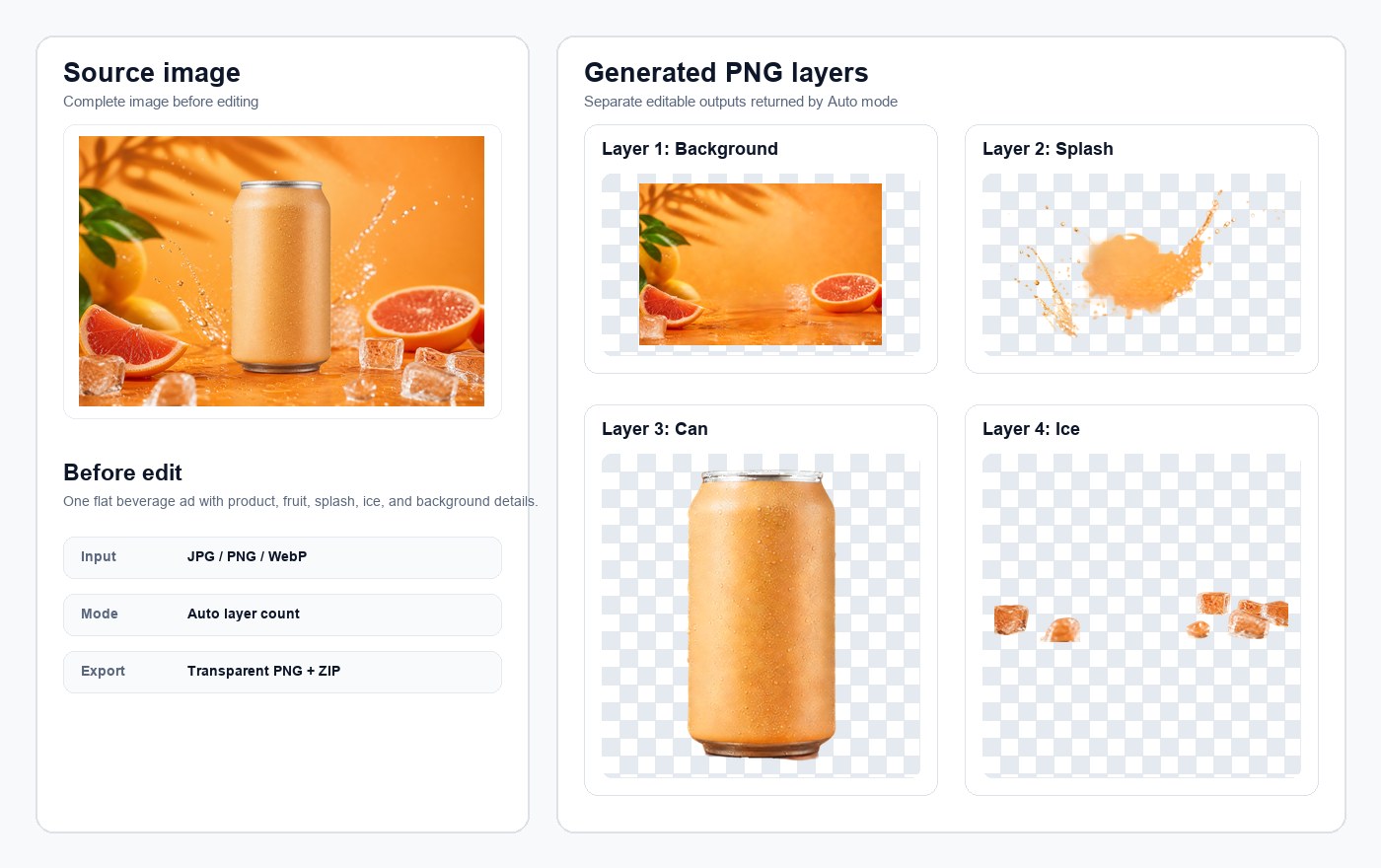
This beverage ad example shows how one flat image can become reusable transparent PNG layer tiles for product, splash, citrus, foreground ice, and background review.
Use the image to layers workflow when you have a finished image but not the original PSD, Figma, or layered source file.
Inspect each generated image layer on a checkerboard transparency background before you decide whether to export it.
Save individual transparent PNG layers or download a ZIP package for Photoshop, ecommerce, design, or content workflows.
See what image to layers AI produces before export
A useful image to layers AI page needs more than a headline. ImageLayer shows the source image next to generated layer tiles so you can judge whether the separation is useful. The output is not a recovered PSD file and it is not a promise that every pixel will be perfect. It is a practical set of transparent PNG assets that can be moved into Photoshop, Canva, Figma, ecommerce campaigns, thumbnails, or social content when the separation is good enough for the job.
Source image review
Start with the cleanest file you have. Product photos, posters, thumbnails, and campaign graphics with clear edges usually produce stronger image layers.
Layer tile inspection
Check whether the subject, background, text, shadow, label, or foreground details are separated into useful transparent PNG assets.
Export decision
Download a single layer when one object is useful, or export all layers as a ZIP when you want to rebuild the full composition.
Choose Auto, 2, 4, 6, or 8 image layers
The right layer count depends on what you need to edit. Auto is the safest first try. More layers can reveal more objects, but it can also create fragments that take longer to review.
Use Auto for a first pass
Auto mode is best when you do not know whether the flat image contains two obvious parts or several reusable elements. It keeps the image to layers workflow simple for first-time tests.
Use 2 or 4 for common edits
Two layers usually means foreground and background. Four layers often works better for ecommerce images, posters, and thumbnails with product, background, label, and foreground detail.
Use 6 or 8 for complex layouts
Six or eight layers can help when a graphic has several separate objects. Review these outputs carefully because extra layers may split shadows, text, or small details.
From image to layer assets you can actually use
ImageLayer is designed for the practical moment after a flat image becomes editable pieces. You can preview image layers online, hide and show layers, then download transparent PNG files or a ZIP package. A new account can test one standard 4-layer result free; paid credits are for repeated jobs and higher layer counts, not an unlimited-free claim.
Transparent PNG layers
Each useful output layer keeps its transparent canvas so it can be imported into Photoshop, design tools, slide decks, ecommerce banners, and social content.
ZIP package export
Use ZIP export when you want every generated image layer together. This is useful when you need to hand off the full layer set or rebuild the composition elsewhere.
Credit-safe review
Preview exists because AI layer separation is probabilistic. Failed provider generations should not become permanent paid results; useful outputs still need visual review.
Image to layers vs background remover vs image overlay
These searches sound similar, but they describe different jobs. Image to layers starts with one finished flat image and tries to split it into several editable transparent pieces. A background remover focuses on one foreground cutout. An image overlay tool puts one image on top of another with position and opacity controls. ImageLayer targets the first job today, so overlay keywords should wait until a real overlay composer exists.
Image to layers
Best when you need multiple reusable objects, backgrounds, labels, shadows, or foreground details from one existing flat image.
Background remover
Best when you only need the main subject separated from the background. It is faster but less useful for rebuilding a full design.
Image overlay
Best when you already have two images and want to place one over the other. That is composition, not layer separation.
What an AI layer splitter can and cannot recover
An AI layer splitter infers likely layers from visible pixels. It cannot know the designer original file structure, hidden objects, font settings, masks, blend modes, or exact Photoshop layer names. Treat image to layer output as editable assistance rather than guaranteed reconstruction.
Glass, hair, and reflections
Transparent glass, hair, fur, smoke, fire, reflections, and semi-transparent fabric can blend across layers and may need manual cleanup.
Shadows and overlapping objects
Shadows may belong visually to both a subject and a background. Overlapping objects can produce partial layers when edges are ambiguous.
Text and small details
Small text, compressed screenshots, noisy edges, and anti-aliased lettering may not separate cleanly. Use the highest-resolution source file you can.
Where image layer online workflows fit
The best image layer online use cases start with a real production problem: a seller needs to reuse a product from a finished ad, a designer needs editable pieces from a reference, or a creator needs to repurpose a thumbnail. ImageLayer is built around that practical handoff from one flat image to several transparent PNG assets.
Ecommerce sellers
Separate product, background, badge, and foreground details so campaign images can be adapted without reshooting everything.
Designers
Recover editable parts from flat posters, mockups, ads, and references when the original source file is missing.
Creators
Reuse thumbnail characters, props, title treatments, and backgrounds across shorts, posts, reels, and cover images.
Image to layers FAQ
Common questions before using ImageLayer as an image to layers AI tool.
Turn one flat image into editable PNG layers
Start with ImageLayer when you need practical image to layers output: preview the generated layers, inspect the transparent PNG files, and export only when the result is useful.